| All returns accepted | ReturnsNotAccepted |
|---|---|
| Brand | Dell |
| Type | Server |
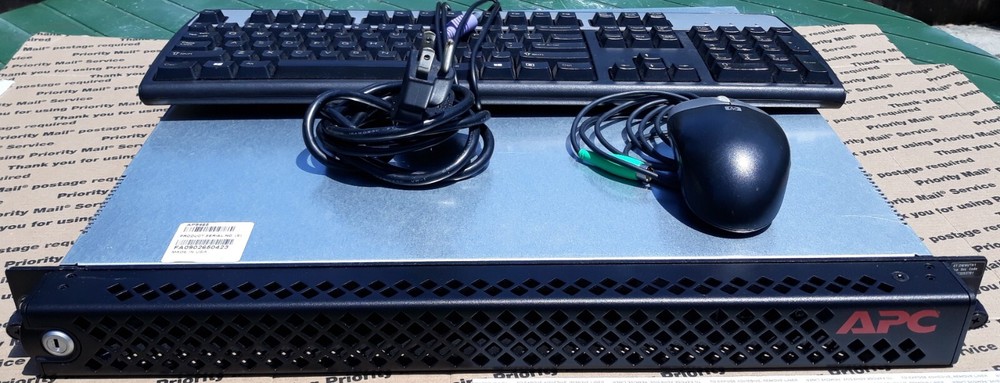
Check the listing for details. APC AP 9465 Data Center Expert Server.. Condition: Used. Listed at 80.00 USD. APC AP9465 Data Center Expert Server.-Keyboard-Mouse includedNo Hard Drive -No OS- No Monitor-No key to open front cover.Power button can be accessed thru front cover holes.Sold as seen in Photos.Data Center Expert Virtual Appliance: The Data Center Expert Virtual Appliance virtual appliance monitors up to five device nodes and one surveillance node. You can purchase a license key to upgrade to a production version to monitor additional device nodes and activate supported applications, or to migrate from a Data Center Expert server hardware version to a Data Center Expert virtual appliance. Note: VMware ESXi 4.1.0 was used as the reference virtualization platform during the development of the Data Center Expert 7.x virtual appliance, and is the first supported virtualization platform. The Data Center Expert virtual appliance is delivered as an OVA (Open Virtualization Archive). Although it may function properly on any virtualization platform that supports this format or has an appropriate converter utility, only VMware ESXi has been tested and is supported. To use the full-featured demo version of the Data Center Expert virtual appliance, you download the *.ova file from the APC web site, and deploy it to your virtualization platform using the default hardware configuration. For more information, see Data Center Expert virtual appliance equivalent configurations. The demo version monitors a maximum of five device nodes and one surveillance node by default. You must upgrade the Data Center Expert virtual appliance demo to the production version to monitor 25 device nodes (as displayed in the Data Center Expert client "License Keys" display), add license keys to monitor additional nodes, or activate supported applications. Note: You can add an additional network adapter to enable private networking, or add additional hard disks to increase storage, after the OVA template is deployed. To upgrade the demo to the production version, you must purchase and apply an activation key, available on the APC web site. To monitor additional device nodes or activate supported applications, you must purchase and apply node license keys and application license keys for the virtual appliance. To migrate a Data Center Expert hardware server to a virtual appliance, you must purchase and apply an activation key, and contact APC Support for new node license keys and application license keys for the virtual appliance. To receive these keys, you are required to provide a unique MAC address and serial number for the Data Center Expert virtual appliance, and for the Data Center Expert hardware server you are replacing. A unique serial number is generated for the Data Center Expert virtual appliance at startup. It is displayed in the "About Data Center Expert" display, accessed from the Help menu. Note: The serial number for a Data Center Expert hardware server appears only on its serial number sticker. This section of the Data Center Expert Virtual Appliance help fully describes deploying the Data Center Expert virtual appliance, and the upgrade and migration processes. It is available as a separate printable document on the APC web site. About changing hardware resource settings for the Data Center Expert virtual appliance: After you have deployed the OVA, you can make changes to the Data Center Expert virtual appliance settings from your virtualization platform client interface. You use apcsetup as the username and password. Network settings: You can configure an additional network adapter to enable the private network (APC LAN) as the apcsetup user or through the Data Center Expert client. MAC Address settings: A unique MAC address is required for each Data Center Expert virtual appliance. If the MAC address originally assigned to the primary or secondary network interface is changed, an error will occur on the primary interface, and the virtual appliance will not start. A message will be displayed indicating the MAC address expected before normal startup will be allowed. Hard disk settings: To increase storage for the virtual appliance, you can create additional hard disks. You cannot change the size of an existing hard disk, or remove a hard disk once it has been created. An error will occur on the primary interface, and the Data Center Expert virtual appliance will not start. Changes in the disk space will take effect once the Data Center Expert virtual appliance has restarted. The "Storage Settings" display, accessed from the Server Administration Settings option in the System menu, shows the total storage space available for the virtual appliance, not the individual hard disks. Note: To store large amounts of surveillance data, using a remote repository is recommended. RAM settings: You can add RAM to the Data Center Expert virtual appliance. You must gracefully shut down the virtual appliance to configure the settings. CPU settings: You can add CPUs to the Data Center Expert virtual appliance. You must gracefully shut down the virtual appliance to configure the settings. StruxureWare Data Center Expert 7.9.3 5 Note: VMware supports fault tolerance on virtual machines with 1 CPU only. Please refer to your vendor's documentation for more information about fault tolerance.
You may also like