| All returns accepted | ReturnsNotAccepted |
|---|---|
| Brand | Unbranded |
| Type | Activity Log |
| Department | Unisex Adults |
| Display Resolution | Your Computer Screen |
| Language | English |
| Indoor/Outdoor | Indoor |
| Measurement System | Any |
| Features | Average Heart Rate |
| Material | Digital Download |
| For Operating Systems | Microsoft Office |
| Sport/Activity | Running & Jogging |
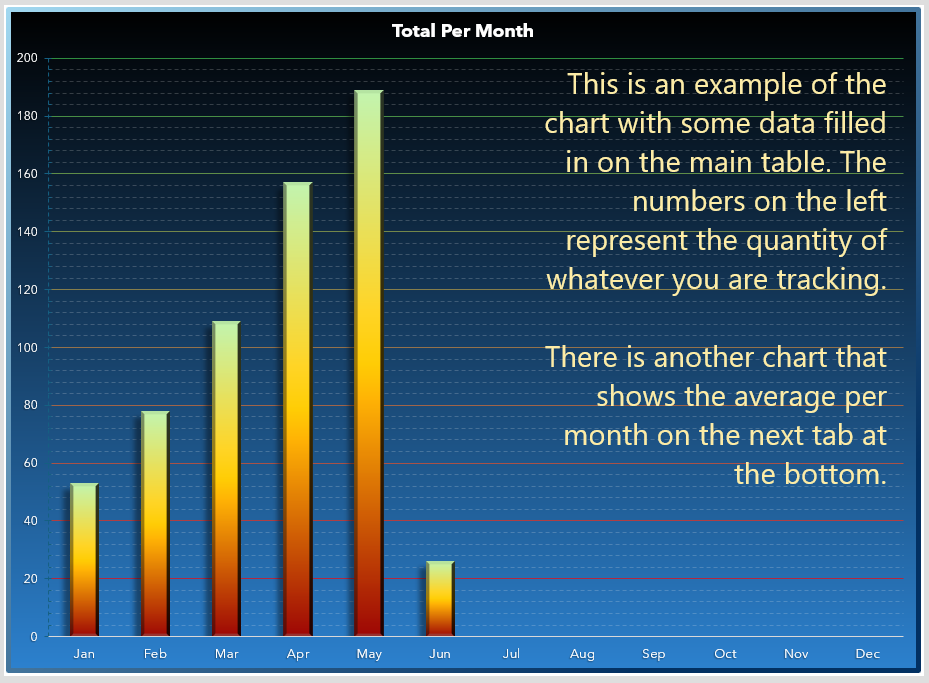
Check the listing for details. Daily Tracker Dynamic Excel Spreadsheet Total Progress Activity Exercise Digital. Condition: New. Listed at 9.99 USD. Daily Tracker Dynamic Excel Spreadsheet Total & Average Progress Activity Exercise DigitalTrack Your Progress, Achieve Your Goals:This customizable Excel spreadsheet is the perfect tool for tracking habits, monitoring progress, and staying motivated. Easily track any activity, from workouts and fitness goals to personal habits and financial targets.Key Features:Dynamic tracking: Enter daily data and watch your progress update automatically.Visual aids: Color-coded cells and bar charts make it easy to see trends and stay motivated.Customization: Track anything you want, from pull-ups and push-ups to meditation minutes and dollars saved Year-end summary: View your annual progress and achievements at a glance.Use Cases:Fitness: Track workouts, weight loss, and fitness goals.Personal habits: Monitor habits like smoking cessation, meditation, or saving money.Productivity: Track work hours, project completion, or goal achievement.Financial: Money spent per day, money saved per day. Daily earnings.Anything you want to do more or less of each day!Get started today and take control of your progress!I created this chart for myself because I wanted to try to increase my total amount of pull ups but I realized this can be used for an array of different things! It's basically a table on Excel. You enter the number of something that you do everyday or most days per month in each cell of the table that represent one day of the month. At the bottom of the column, it will show you the total of how many you've complete for that month. Below that, it will calculate your daily average. You should enter 0 for the days that you missed or leave blank for the days that you had no intention of including in your count. The colors in the table will show you whether you have increased (green) or decreased (red) from the previous day. Same concept between months. If you have a higher count in July than June, then July will be green. There is a grand total at the end of the year for how much you've done (whatever activity you choose). Also the monthly average. Moving along to the next tab, there will be a bar chart that shows your progress. The tab after that shows your monthly average progress. Every entry you make will change the bar. You can see at a year's view how well you are doing looking at the bars. With this visual inspiration, you want to see the bar go higher and higher and not lower than the previous bar. It really helped me keep track of my pull ups and greatly increase my progress! -------------------------------------------------------------------------------------------------------------------------------------------- Normal 0 false false false EN-US X-NONE X-NONE Since this is a one-of-a-kind unique product designed and created by myself with no inspiration from any existing spreadsheets or progress trackers, I must protect it from piracy. This spreadsheet is protected by HoGo, a DRM (Digital Rights Management) tool used to prevent people from copying and redistributing it. You will be able to download the spreadsheet only once. How to Access and Use Your Daily Tracker Spreadsheet To get started, please follow these simple steps: 1. Download the Spreadsheet: a. We'll send you a unique download link. b. Click the link to access the spreadsheet. 2. Install HoGo Viewer: a. Download and install the HoGo Viewer addon for your device (PC, iPad, iPhone). You can find the download link here. 3. Register HoGo Viewer: a. Open the HoGo Viewer and register it using the email address you received the download link from. b. You'll receive a one-time PIN to complete the registration. 4. Access the Spreadsheet: a. Once registered, the HoGo Viewer will connect to the server and display the document. b. Click the "Download" button to save the spreadsheet to your device. (If the document does not appear, try clicking the “Cloud Library” button. On Windows, the button can be found on the upper left of your screen. On iOS it is at the bottom.) 5. Use Microsoft Office: a. To view and edit the spreadsheet on Windows, you'll need Microsoft Office 2010, 2013, 2016 or later on Windows XP, Vista, Windows 7, Windows 8, and Windows10.
You may also like


